
SAPPHIRE Firmware VS1.22
Release Notes
Release Date: June 10, 2026
Version: V1.22 and VS1.22 / VC1.22 and VCS1.22
- Optimized the auto-sleep and wake-up timing when LED lighting is disabled, improving power management and user experience.
Click the links below to download the firmware:
Standard Edition
CAPCOM Juri Edition
--------------------------------------------------------------------------------------------
Version History
SAPPHIRE Firmware VS1.21
(Click to Download: Windows PC only) Standard Edition
(Click to Download: Windows PC only) CAPCOM Juri Edition
Important Notes:
- Check with your tournament organizer/website to determine proper tournament rules.
- If you are not sure of the tournament rules, please use
Standard Edition Firmware V1.21 (Click to Download: Windows PC only)
CAPCOM Juri Edition Firmware VC1.21 (Click to Download: Windows PC only)
- Firmware V1.21/V1.22 HUD will show RED colors when pressing buttons
- Firmware VS1.21/V1.22 HUD will show GREEN colors when pressing buttons

Firmware Installation Instructions
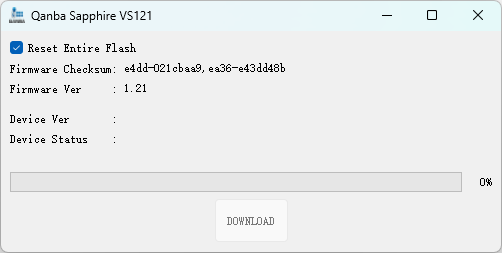
1.Launch Firmware VS1.21, then hold the ≡ OPTIONS button on Qanba Sapphire while plugging in the USB cable to your Windows PC
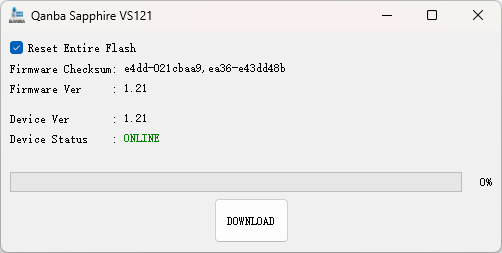
2.When "DOWNLOAD" button changes from gray to black, SAPPHIRE has been successfully connected
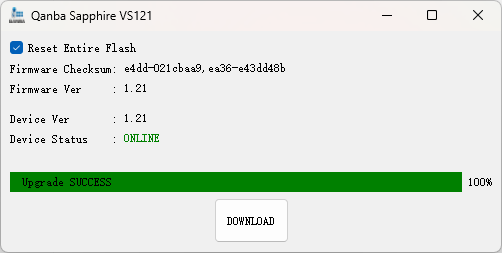
3. Click "DOWNLOAD" to update the firmware. When the progress bar reaches 100%, firmware update is complete. Unplug SAPPHIRE USB cable
New Feature Highlights
- Provides three switchable SOCD modes.
- Supports mapping of multiple buttons to the same function.
- Supports quick clearing of duplicate functions of multiple buttons.
1. Three SOCD Function Modes
| Mode Name | Input Rules | Access Method |
| Tournament Mode (Default) | ↑ + ↓ = Neutral ← + → = Neutral |
This mode is the default after updating to the VS1.21 firmware. To switch back from other modes: Press and hold the ↑ and ↓ direction buttons (as marked on the panel) simultaneously, then plug the USB into a Windows PC, PS4, or PS5. |
| Up Priority Mode | ↑ + ↓ = ↑ ← + → = Neutral |
Press and hold the ↑ direction button (as marked on the panel), then plug the USB into a Windows PC, PS4, or PS5. |
| Last-Input Override Mode | ↑ + ↓ = ↓ ↓ + ↑ = ↑ ← + → = → → + ← = ← (Last input overrides previous input) |
Press and hold the ← and → direction buttons (as marked on the panel) simultaneously, then plug the USB into a Windows PC, PS4, or PS5. |
2. Mapping Multiple Buttons to the Same Function
- Function: Multiple buttons can be mapped to the same function (e.g., setting multiple buttons to act as the "↑" button).
- Operation Steps:
- In any compatible mode of PS5/PS4/PC, select any button layout (1/2/3).
- Press and hold the PS button + ⚙ SETTINGS button for more than 3 seconds; the "↑" indicator light on the HUD will flash.
- Press any button that you want to set as an additional "↑" button. The corresponding button light will flash to indicate successful setup.
- Repeat Step 3 to add more buttons for the same function.
- Save and Exit: Press and hold the ⚙ SETTINGS button for more than 3 seconds.
- Exit Without Saving: Press the ≡ OPTION button to go back until you exit the settings mode.
- Notes:
- To set other function buttons (e.g., the "X" button), press the ⚙ SETTINGS button to navigate the HUD indicator light forward to the corresponding "X" symbol first, then repeat the above steps to set the duplicate buttons. The OPTIONS button can be used to navigate the HUD indicator light backwards.
- The added button settings have a memory function and will not be lost when switching between different SOCD modes.
- We recommend using the normal button mapping mode (Hold SETTINGS for 3 seconds) to adjust button mapping locations first
- Then, use the new multiple button mapping mode (Hold SETTINGS + PS for seconds) to add multiple functions
3. Quick Clearing of Duplicate Functions of Multiple Buttons
- Press and hold the ⚙ SETTINGS + ≡ OPTION buttons for 3 seconds to clear the current saved settings.
- Press and hold the PS button while plugging the Qanba Sapphire USB into the USB port of a computer, PS4, or PS5 host to clear all saved settings in layouts 1/2/3.


